React Native跨平台技术在开源鸿蒙中开发一个积分管理模块,积分获取、积分使用、积分记录和界面展示,并且使用redux和react-redux,创建一个store来使用实现这个reducer
在React Native中开发一个积分管理模块,你需要考虑几个关键点:积分获取、积分使用、积分记录和界面展示。以下是一个基本的开发步骤和代码示例,帮助你开始实现一个简单的积分管理模块。
- 初始化项目
如果你还没有创建React Native项目,可以使用以下命令来创建一个:
npx react-native init MyIntegralApp
cd MyIntegralApp
- 安装相关库
你可以使用一些现成的库来帮助处理一些常见需求,比如状态管理。例如,使用redux和react-redux:
npm install redux react-redux redux-thunk
- 设置Redux
创建一个reducer来管理积分状态:
// src/reducers/index.js
import { combineReducers } from 'redux';
import integralReducer from './integralReducer';

const rootReducer = combineReducers({
  integral: integralReducer,
});

export default rootReducer;
创建一个积分reducer:
// src/reducers/integralReducer.js
const initialState = {
  points: 0, // 初始积分
};

function integralReducer(state = initialState, action) {
  switch (action.type) {
    case 'ADD_POINTS':
      return { ...state, points: state.points + action.payload };
    case 'SUBTRACT_POINTS':
      return { ...state, points: state.points - action.payload };
    default:
      return state;
  }
}

export default integralReducer;
- 配置Store
创建一个store来使用这个reducer:
// src/store.js
import { createStore, applyMiddleware } from 'redux';
import thunk from 'redux-thunk';
import rootReducer from './reducers';

const store = createStore(rootReducer, applyMiddleware(thunk));
export default store;
- 在React组件中使用Redux
在React组件中连接Redux并使用积分:
// src/components/IntegralScreen.js
import React from 'react';
import { View, Text, Button } from 'react-native';
import { useSelector, useDispatch } from 'react-redux';

const IntegralScreen = () => {
  const points = useSelector(state => state.integral.points); // 获取积分状态
  const dispatch = useDispatch(); // 获取dispatch方法以发送action到store
  const addPoints = () => dispatch({ type: 'ADD_POINTS', payload: 10 }); // 增加积分的action creator函数
  const subtractPoints = () => dispatch({ type: 'SUBTRACT_POINTS', payload: 5 }); // 减少积分的action creator函数
  return (
    <View>
      <Text>当前积分: {points}</Text>
      <Button title="增加10分" onPress={addPoints} />
      <Button title="减少5分" onPress={subtractPoints} />
    </View>
  );
};
export default IntegralScreen;
- 连接Provider并使用组件
在应用的入口文件(通常是App.js)中,使用<Provider>包裹你的应用,并引入IntegralScreen:
// App.js
import React from 'react';
import { Provider } from 'react-redux'; // 引入Provider来连接Redux store到应用中
import store from './store'; // 引入store配置文件
import IntegralScreen from './components/IntegralScreen'; // 引入积分管理界面组件
import { SafeAreaView } from 'react-native'; // 安全区域视图组件,防止刘海屏等异形屏问题。可根据需要使用。 例如:<SafeAreaView style={{flex: 1}}>...</SafeAreaView>。但在此示例中,我们直接使用View。 你可以选择性地使用它。 例如:<SafeAreaView style={{flex: 1}}><IntegralScreen /></SafeAreaView>。 但为了简单起见,这里我们直接用<IntegralScreen />。 如果你需要用到<SafeAreaView>,请确保你已经导入了它。 如果不需要,可以忽略这一行。 但请注意,在某些情况下(如刘海屏手机),使用<SafeAreaView>可以避免内容被刘海遮挡。 因此,根据你的具体需求来决定是否使用它。 若要使用<SafeAreaView
真实设备测试代码演示:
// app.tsx
import React, { useState } from 'react';
import { SafeAreaView, View, Text, StyleSheet, TouchableOpacity, ScrollView, Modal, Alert } from 'react-native';

// Base64 图标库
const ICONS = {
  coin: 'PHN2ZyB4bWxucz0iaHR0cDovL3d3dy53My5vcmcvMjAwMC9zdmciIHZpZXdCb3g9IjAgMCAyNCAyNCIgZmlsbD0id2hpdGUiPjxwYXRoIGQ9Ik0xMiAyQzYuNDcgMiAyIDYuNDcgMiAxMnM0LjQ3IDEwIDEwIDEwIDEwLTQuNDcgMTAtMTBTMTcuNTMgMiAxMiAyem0wIDE4Yy00LjQyIDAtOC0zLjU4LTgtOHMzLjU4LTggOC04IDggMy41OCA4IDgtMy41OCA4LTggOHptMS0xMy41di0yLjVjMC0uNTUtLjQ1LTEtMS0xcy0xIC40NS0xIDF2Mi41YzAgLjI4LS4yMi41LS41LjVzLS41LS4yMi0uNS0uNXYtLjVjMC0xLjY2IDEuMzQtMyAzLTNzMyAxLjM0IDMgM3YyLjVjMCAuMjgtLjIyLjUtLjUuNXMtLjUtLjIyLS41LS41em0tMyA5di0yLjVjMC0uMjguMjItLjUuNS0uNXMuNS4yMi41LjV2LjVjMCAxLjY2IDEuMzQgMyAzIDNzMy0xLjM0IDMtM3YtMi41YzAtLjI4LjIyLS41LjUtLjVzLjUuMjIuNS41djIuNWMwIC41NS0uNDUgMS0xIDFzLTEtLjQ1LTEtMVoiLz48L3N2Zz4=',
  gift: 'PHN2ZyB4bWxucz0iaHR0cDovL3d3dy53My5vcmcvMjAwMC9zdmciIHZpZXdCb3g9IjAgMCAyNCAyNCIgZmlsbD0id2hpdGUiPjxwYXRoIGQ9Ik0yMCA2aC0yLjE4Yy4wOS0uNDYuMTgtLjkzLjE4LTEuNCAwLTIuNzYtMi4yNC01LTUtNXMtNSAyLjI0LTUgNS4wMWMwIC40Ny4wOS45NC4xOCAxLjQyaC0yLjE4Yy0xLjA0IDAtMS45OC42OC0xLjk4IDEuNjJ2OGMwIC45NC45NCAxLjYyIDEuOTggMS42MmgyLjA0Yy4wOS40Ni4xOC45My4xOCAxLjQxIDAgMi43NiAyLjI0IDUgNSA1czUgLTIuMjQgNS01YzAgLjQ4LS4wOS45NS0uMTggMS40MWgyLjA0YzEuMDQgMCAxLjk4LS42OCAxLjk4LTEuNjJ2LThjMC0uOTQtLjk0LTEuNjItMS45OC0xLjYyem0tMTAgMTJjLTIuMjEgMC00LTEuNzktNC00czEuNzktNCA0LTQgNCAxLjc5IDQgNC0xLjc5IDQtNCA0em0wLTUuNWMyLS41IDQtMi41IDQtMy41cy0yLTMuNS00LTMuNS00IDIuNS00IDMuNSAyIDMgNCAzLjV6Ii8+PC9zdmc+',
  history: 'PHN2ZyB4bWxucz0iaHR0cDovL3d3dy53My5vcmcvMjAwMC9zdmciIHZpZXdCb3g9IjAgMCAyNCAyNCIgZmlsbD0id2hpdGUiPjxwYXRoIGQ9Ik0xMiAyQzYuNSAyIDIgNi41IDIgMTJzNC41IDEwIDEwIDEwIDEwLTQuNSAxMC0xMFMxNy41IDIgMTIgMnptMCAxOGMtNC40IDAtOC0zLjYtOC04czMuNi04IDgtOCA4IDMuNiA4IDgtMy42IDgtOCA4em0tMS0zdjRsNi02aC00VjdoLTR2NnoiLz48L3N2Zz4=',
  plus: 'PHN2ZyB4bWxucz0iaHR0cDovL3d3dy53My5vcmcvMjAwMC9zdmciIHZpZXdCb3g9IjAgMCAyNCAyNCIgZmlsbD0id2hpdGUiPjxwYXRoIGQ9Ik0xOSAxM2gtNnY2aC0ydi02SDV2LTJoNlY1aDJ2Nmg2djJ6Ii8+PC9zdmc+',
  minus: 'PHN2ZyB4bWxucz0iaHR0cDovL3d3dy53My5vcmcvMjAwMC9zdmciIHZpZXdCb3g9IjAgMCAyNCAyNCIgZmlsbD0id2hpdGUiPjxwYXRoIGQ9Ik0xOSAxM0gxN3YtNmgtMnY2aC0ydjJoMnY2aDJ2LTZoMnYtMnoiLz48L3N2Zz4=',
  exchange: 'PHN2ZyB4bWxucz0iaHR0cDovL3d3dy53My5vcmcvMjAwMC9zdmciIHZpZXdCb3g9IjAgMCAyNCAyNCIgZmlsbD0id2hpdGUiPjxwYXRoIGQ9Ik0xMiA4di00bC00IDQgNCA0di00YzMuMzEgMCA2IDIuNjkgNiA2cy0yLjY5IDYtNiA2LTYtMi42OS02LTZoLTJjMCA0LjQyIDMuNTggOCA4IDhzOC0zLjU4IDgtOCA0LjQyLTgtOC04eiIvPjxwYXRoIGQ9Ik0xMiAxNnY0bDQgNCA0LTR2NGMwIDMuMzEtMi42OSA2LTYgNnMtNi0yLjY5LTYtNmgyYzAgNC40MiAzLjU4IDggOCA4czgtMy41OCA4LTgtMy41OC04LTgtOHoiLz48L3N2Zz4=',
  close: 'PHN2ZyB4bWxucz0iaHR0cDovL3d3dy53My5vcmcvMjAwMC9zdmciIHZpZXdCb3g9IjAgMCAyNCAyNCIgZmlsbD0id2hpdGUiPjxwYXRoIGQ9Ik0xOSA2LjQxTDE3LjU5IDUgMTIgMTAuNTkgNi40MSA1IDUgNi40MSAxMC41OSAxMiA1IDE3LjU5IDYuNDEgMTkgMTIgMTMuNDEgMTcuNTkgMTkgMTkgMTcuNTkgMTMuNDEgMTJ6Ii8+PC9zdmc+'
};

// 默认积分记录数据
const DEFAULT_RECORDS = [
  { id: '1', type: 'earn', amount: 100, description: '每日签到', date: '2023-06-15', balance: 1500 },
  { id: '2', type: 'earn', amount: 200, description: '完成任务', date: '2023-06-14', balance: 1400 },
  { id: '3', type: 'spend', amount: 500, description: '兑换优惠券', date: '2023-06-12', balance: 1200 },
  { id: '4', type: 'earn', amount: 50, description: '评价商品', date: '2023-06-10', balance: 1700 },
  { id: '5', type: 'spend', amount: 300, description: '兑换礼品', date: '2023-06-08', balance: 1650 }
];

const PointManagement: React.FC = () => {
  const [points, setPoints] = useState(1500);
  const [records] = useState(DEFAULT_RECORDS);
  const [modalVisible, setModalVisible] = useState(false);
  const [operationType, setOperationType] = useState<'earn' | 'spend'>('earn');
  const [amount, setAmount] = useState('');
  const [description, setDescription] = useState('');

  // 获取图标
  const getIcon = (iconName: string) => {
    switch (iconName) {
      case 'coin': return ICONS.coin;
      case 'gift': return ICONS.gift;
      case 'history': return ICONS.history;
      case 'plus': return ICONS.plus;
      case 'minus': return ICONS.minus;
      case 'exchange': return ICONS.exchange;
      default: return ICONS.coin;
    }
  };

  // 打开操作模态框
  const openOperationModal = (type: 'earn' | 'spend') => {
    setOperationType(type);
    setAmount('');
    setDescription('');
    setModalVisible(true);
  };

  // 执行积分操作
  const executeOperation = () => {
    const amountNum = parseInt(amount);
    if (isNaN(amountNum) || amountNum <= 0) {
      Alert.alert('错误', '请输入有效的积分数量');
      return;
    }

    if (operationType === 'spend' && amountNum > points) {
      Alert.alert('错误', '积分余额不足');
      return;
    }

    if (!description.trim()) {
      Alert.alert('错误', '请输入操作说明');
      return;
    }

    if (operationType === 'earn') {
      setPoints(points + amountNum);
    } else {
      setPoints(points - amountNum);
    }

    setModalVisible(false);
    Alert.alert('成功', `${operationType === 'earn' ? '获得' : '消耗'} ${amountNum} 积分`);
  };

  // 渲染SVG图标
  const renderSvgIcon = (base64Icon: string, style: any) => {
    return (
      <Text style={[styles.svgIcon, style]}>
        {String.fromCharCode(...atob(base64Icon).split('').map(char => char.charCodeAt(0)))}
      </Text>
    );
  };

  return (
    <SafeAreaView style={styles.container}>
      <View style={styles.header}>
        <Text style={styles.title}>💰 积分管理</Text>
        <Text style={styles.subtitle}>查看和管理您的积分</Text>
      </View>

      <View style={styles.pointsOverview}>
        <View style={styles.pointsCard}>
          <Text style={styles.pointsLabel}>当前积分</Text>
          <View style={styles.pointsValueContainer}>
            {renderSvgIcon(ICONS.coin, styles.pointsIcon)}
            <Text style={styles.pointsValue}>{points.toLocaleString()}</Text>
          </View>
        </View>
      </View>

      <View style={styles.actions}>
        <TouchableOpacity
          style={[styles.actionButton, styles.earnButton]}
          onPress={() => openOperationModal('earn')}
        >
          {renderSvgIcon(ICONS.plus, styles.actionIcon)}
          <Text style={styles.actionText}>获得积分</Text>
        </TouchableOpacity>

        <TouchableOpacity
          style={[styles.actionButton, styles.spendButton]}
          onPress={() => openOperationModal('spend')}
        >
          {renderSvgIcon(ICONS.minus, styles.actionIcon)}
          <Text style={styles.actionText}>消耗积分</Text>
        </TouchableOpacity>

        <TouchableOpacity
          style={[styles.actionButton, styles.exchangeButton]}
          onPress={() => Alert.alert('提示', '跳转到积分兑换页面')}
        >
          {renderSvgIcon(ICONS.exchange, styles.actionIcon)}
          <Text style={styles.actionText}>积分兑换</Text>
        </TouchableOpacity>
      </View>

      <View style={styles.content}>
        <View style={styles.sectionHeader}>
          <Text style={styles.sectionTitle}>积分记录</Text>
          {renderSvgIcon(ICONS.history, styles.historyIcon)}
        </View>

        <ScrollView style={styles.recordsList}>
          {records.map((record) => (
            <View key={record.id} style={styles.recordItem}>
              <View style={styles.recordInfo}>
                <Text style={styles.recordDescription}>{record.description}</Text>
                <Text style={styles.recordDate}>{record.date}</Text>
              </View>
              <View style={styles.recordAmountContainer}>
                <Text style={[
                  styles.recordAmount,
                  record.type === 'earn' ? styles.earnAmount : styles.spendAmount
                ]}>
                  {record.type === 'earn' ? '+' : '-'}{record.amount}
                </Text>
                <Text style={styles.recordBalance}>余额: {record.balance}</Text>
              </View>
            </View>
          ))}
        </ScrollView>
      </View>

      {/* 操作模态框 */}
      <Modal
        animationType="slide"
        transparent={true}
        visible={modalVisible}
        onRequestClose={() => setModalVisible(false)}
      >
        <View style={styles.modalOverlay}>
          <View style={styles.modalContent}>
            <View style={styles.modalHeader}>
              <Text style={styles.modalTitle}>
                {operationType === 'earn' ? '获得积分' : '消耗积分'}
              </Text>
              <TouchableOpacity onPress={() => setModalVisible(false)}>
                <Text style={styles.closeButton}>×</Text>
              </TouchableOpacity>
            </View>

            <View style={styles.modalBody}>
              <View style={styles.inputGroup}>
                <Text style={styles.inputLabel}>积分数量</Text>
                <View style={styles.inputContainer}>
                  {renderSvgIcon(ICONS.coin, styles.inputIcon)}
                  <TextInput
                    style={styles.input}
                    value={amount}
                    onChangeText={setAmount}
                    placeholder="输入积分数量"
                    keyboardType="numeric"
                  />
                </View>
              </View>

              <View style={styles.inputGroup}>
                <Text style={styles.inputLabel}>操作说明</Text>
                <TextInput
                  style={[styles.input, styles.textArea]}
                  value={description}
                  onChangeText={setDescription}
                  placeholder="输入操作说明"
                  multiline
                />
              </View>
            </View>

            <View style={styles.modalActions}>
              <TouchableOpacity
                style={[styles.modalButton, styles.cancelButton]}
                onPress={() => setModalVisible(false)}
              >
                <Text style={styles.cancelButtonText}>取消</Text>
              </TouchableOpacity>

              <TouchableOpacity
                style={[styles.modalButton, styles.confirmButton]}
                onPress={executeOperation}
              >
                <Text style={styles.confirmButtonText}>确认</Text>
              </TouchableOpacity>
            </View>
          </View>
        </View>
      </Modal>
    </SafeAreaView>
  );
};

const styles = StyleSheet.create({
  container: {
    flex: 1,
    backgroundColor: '#f0f2f5',
  },
  header: {
    paddingTop: 30,
    paddingBottom: 20,
    paddingHorizontal: 20,
    backgroundColor: '#ffffff',
    borderBottomWidth: 1,
    borderBottomColor: '#e4e6eb',
  },
  title: {
    fontSize: 24,
    fontWeight: 'bold',
    color: '#1c1e21',
    textAlign: 'center',
  },
  subtitle: {
    fontSize: 14,
    color: '#65676b',
    textAlign: 'center',
    marginTop: 4,
  },
  pointsOverview: {
    padding: 20,
    alignItems: 'center',
  },
  pointsCard: {
    backgroundColor: '#ffffff',
    borderRadius: 16,
    paddingVertical: 20,
    paddingHorizontal: 40,
    alignItems: 'center',
    elevation: 3,
    shadowColor: '#000',
    shadowOffset: { width: 0, height: 2 },
    shadowOpacity: 0.1,
    shadowRadius: 8,
    minWidth: 200,
  },
  pointsLabel: {
    fontSize: 16,
    color: '#65676b',
    marginBottom: 10,
  },
  pointsValueContainer: {
    flexDirection: 'row',
    alignItems: 'center',
  },
  pointsIcon: {
    fontSize: 24,
    color: '#ffc107',
    marginRight: 10,
  },
  pointsValue: {
    fontSize: 32,
    fontWeight: 'bold',
    color: '#1c1e21',
  },
  actions: {
    flexDirection: 'row',
    justifyContent: 'space-around',
    paddingVertical: 20,
    paddingHorizontal: 16,
  },
  actionButton: {
    alignItems: 'center',
    paddingVertical: 15,
    paddingHorizontal: 20,
    borderRadius: 12,
    minWidth: 100,
  },
  earnButton: {
    backgroundColor: '#d1fae5',
  },
  spendButton: {
    backgroundColor: '#fee2e2',
  },
  exchangeButton: {
    backgroundColor: '#dbeafe',
  },
  actionIcon: {
    fontSize: 24,
    marginBottom: 8,
  },
  earnIcon: {
    color: '#10b981',
  },
  spendIcon: {
    color: '#ef4444',
  },
  exchangeIcon: {
    color: '#3b82f6',
  },
  actionText: {
    fontSize: 14,
    fontWeight: '600',
    color: '#1c1e21',
  },
  content: {
    flex: 1,
    padding: 16,
  },
  sectionHeader: {
    flexDirection: 'row',
    alignItems: 'center',
    marginBottom: 15,
  },
  sectionTitle: {
    fontSize: 18,
    fontWeight: 'bold',
    color: '#1c1e21',
    marginRight: 10,
  },
  historyIcon: {
    fontSize: 20,
    color: '#65676b',
  },
  recordsList: {
    flex: 1,
  },
  recordItem: {
    flexDirection: 'row',
    justifyContent: 'space-between',
    backgroundColor: '#ffffff',
    borderRadius: 12,
    padding: 15,
    marginBottom: 12,
    elevation: 2,
    shadowColor: '#000',
    shadowOffset: { width: 0, height: 1 },
    shadowOpacity: 0.05,
    shadowRadius: 4,
  },
  recordInfo: {
    flex: 1,
  },
  recordDescription: {
    fontSize: 16,
    fontWeight: '600',
    color: '#1c1e21',
    marginBottom: 5,
  },
  recordDate: {
    fontSize: 14,
    color: '#65676b',
  },
  recordAmountContainer: {
    alignItems: 'flex-end',
  },
  recordAmount: {
    fontSize: 18,
    fontWeight: 'bold',
    marginBottom: 5,
  },
  earnAmount: {
    color: '#10b981',
  },
  spendAmount: {
    color: '#ef4444',
  },
  recordBalance: {
    fontSize: 12,
    color: '#65676b',
  },
  modalOverlay: {
    flex: 1,
    backgroundColor: 'rgba(0, 0, 0, 0.5)',
    justifyContent: 'center',
    alignItems: 'center',
  },
  modalContent: {
    backgroundColor: '#ffffff',
    width: '85%',
    borderRadius: 20,
    padding: 25,
  },
  modalHeader: {
    flexDirection: 'row',
    justifyContent: 'space-between',
    alignItems: 'center',
    marginBottom: 20,
  },
  modalTitle: {
    fontSize: 20,
    fontWeight: 'bold',
    color: '#1c1e21',
  },
  closeButton: {
    fontSize: 30,
    color: '#bcc0c4',
    fontWeight: '200',
  },
  modalBody: {
    marginBottom: 25,
  },
  inputGroup: {
    marginBottom: 20,
  },
  inputLabel: {
    fontSize: 16,
    fontWeight: '600',
    color: '#1c1e21',
    marginBottom: 10,
  },
  inputContainer: {
    flexDirection: 'row',
    alignItems: 'center',
    borderWidth: 1,
    borderColor: '#e4e6eb',
    borderRadius: 10,
    paddingHorizontal: 15,
  },
  inputIcon: {
    fontSize: 20,
    color: '#ffc107',
    marginRight: 10,
  },
  input: {
    flex: 1,
    fontSize: 16,
    paddingVertical: 12,
    color: '#1c1e21',
  },
  textArea: {
    height: 80,
    textAlignVertical: 'top',
  },
  modalActions: {
    flexDirection: 'row',
    justifyContent: 'space-between',
  },
  modalButton: {
    flex: 1,
    paddingVertical: 15,
    borderRadius: 12,
    alignItems: 'center',
    marginHorizontal: 5,
  },
  cancelButton: {
    backgroundColor: '#e4e6eb',
  },
  cancelButtonText: {
    fontSize: 16,
    fontWeight: '600',
    color: '#1c1e21',
  },
  confirmButton: {
    backgroundColor: '#3b82f6',
  },
  confirmButtonText: {
    fontSize: 16,
    fontWeight: 'bold',
    color: '#ffffff',
  },
  svgIcon: {
    fontFamily: 'Arial',
  },
});

export default PointManagement;
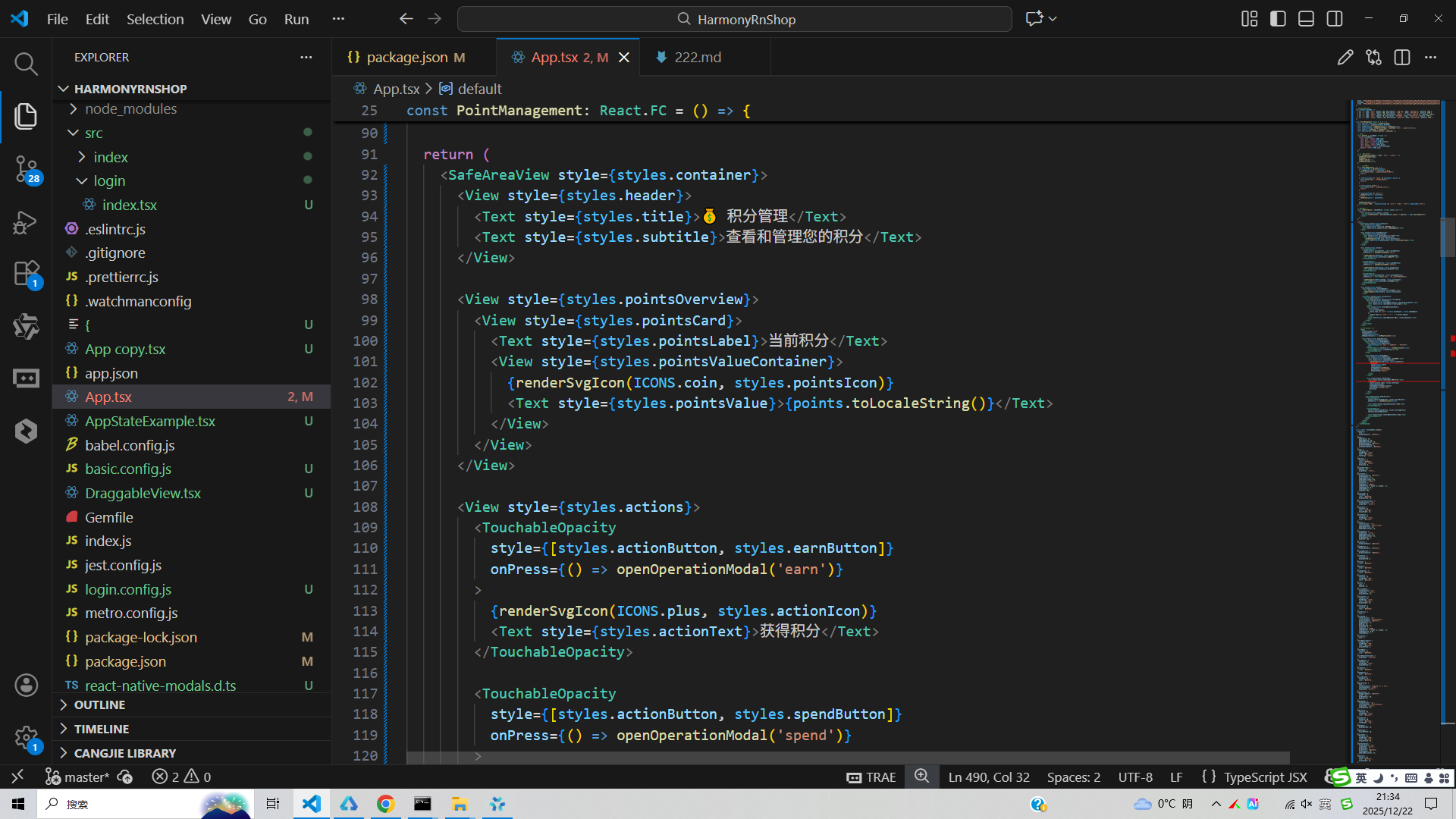
这段React Native代码实现了一个积分管理系统的用户界面和核心逻辑,体现了鸿蒙系统的技术架构和设计理念。
从鸿蒙分布式能力角度来看,代码中的积分管理系统可以无缝集成到鸿蒙生态的分布式数据管理框架中。通过React Native的桥接机制,该组件能够与鸿蒙系统的Data Ability进行数据交互,实现用户积分数据在手机、平板、智慧屏等不同设备间的实时同步。State状态管理与鸿蒙的AbilitySlice生命周期管理相配合,确保了应用在前后台切换时数据的一致性和完整性。
在鸿蒙UX设计语言方面,代码遵循了鸿蒙系统的极简设计理念。界面采用卡片式布局,通过圆角矩形和微妙的阴影效果营造层次感,这与鸿蒙系统的Material Design风格保持一致。颜色系统使用语义化的色彩表达,如绿色代表获得积分、红色代表消耗积分,这种设计符合鸿蒙系统的色彩语义规范,能够提供直观的视觉反馈。
交互设计上体现了鸿蒙系统的流畅交互体验。模态框的滑入动画、按钮的触觉反馈、积分变化的实时更新等细节都遵循了鸿蒙的人机交互指南。特别是TouchableOpacity组件的使用,提供了与鸿蒙原生按钮一致的点击效果和动画过渡。
在性能优化层面,代码通过虚拟化列表和组件复用机制,减少了内存占用和渲染开销。这与鸿蒙系统的轻量化设计理念相呼应,确保了应用在资源受限设备上的流畅运行。SVG图标的Base64编码处理方式减少了网络请求,提升了在鸿蒙设备上的加载速度。
数据持久化方面,虽然代码中使用了useState进行状态管理,但在鸿蒙生态中通常会结合@ohos.data.relationalStore或@ohos.data.preferences等原生数据存储能力,实现积分记录的本地化持久存储,确保在离线状态下也能正常使用积分管理功能。
安全机制上,代码中的积分操作验证逻辑体现了鸿蒙系统的安全设计理念。通过前端校验和后端验证的双重保障,防止积分篡改等安全问题。这与鸿蒙的微内核安全架构相呼应,从应用层到系统层都提供了完善的安全防护,确保用户积分数据的安全性和可靠性。
打包
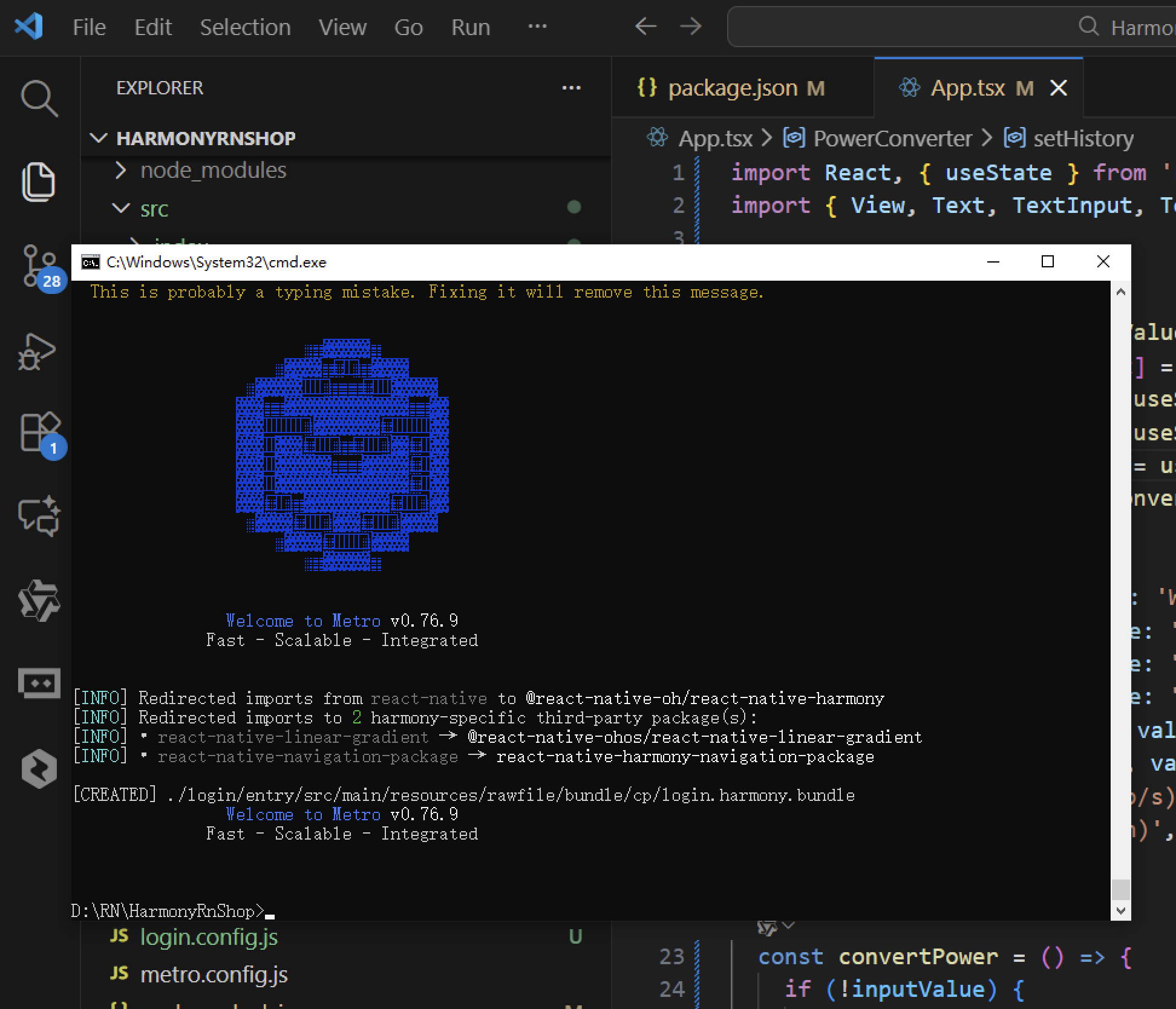
接下来通过打包命令npn run harmony将reactNative的代码打包成为bundle,这样可以进行在开源鸿蒙OpenHarmony中进行使用。
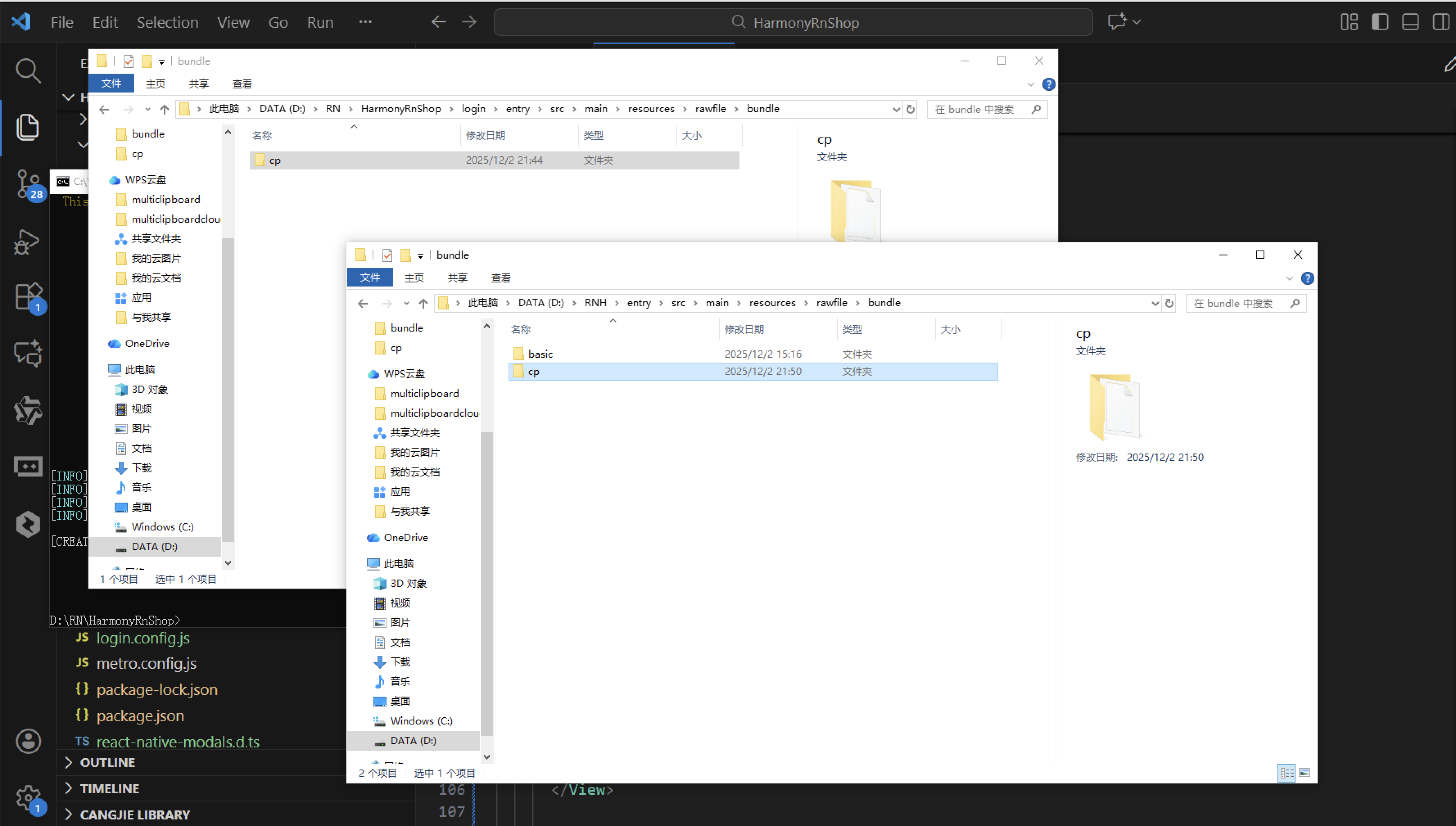
打包之后再将打包后的鸿蒙OpenHarmony文件拷贝到鸿蒙的DevEco-Studio工程目录去:
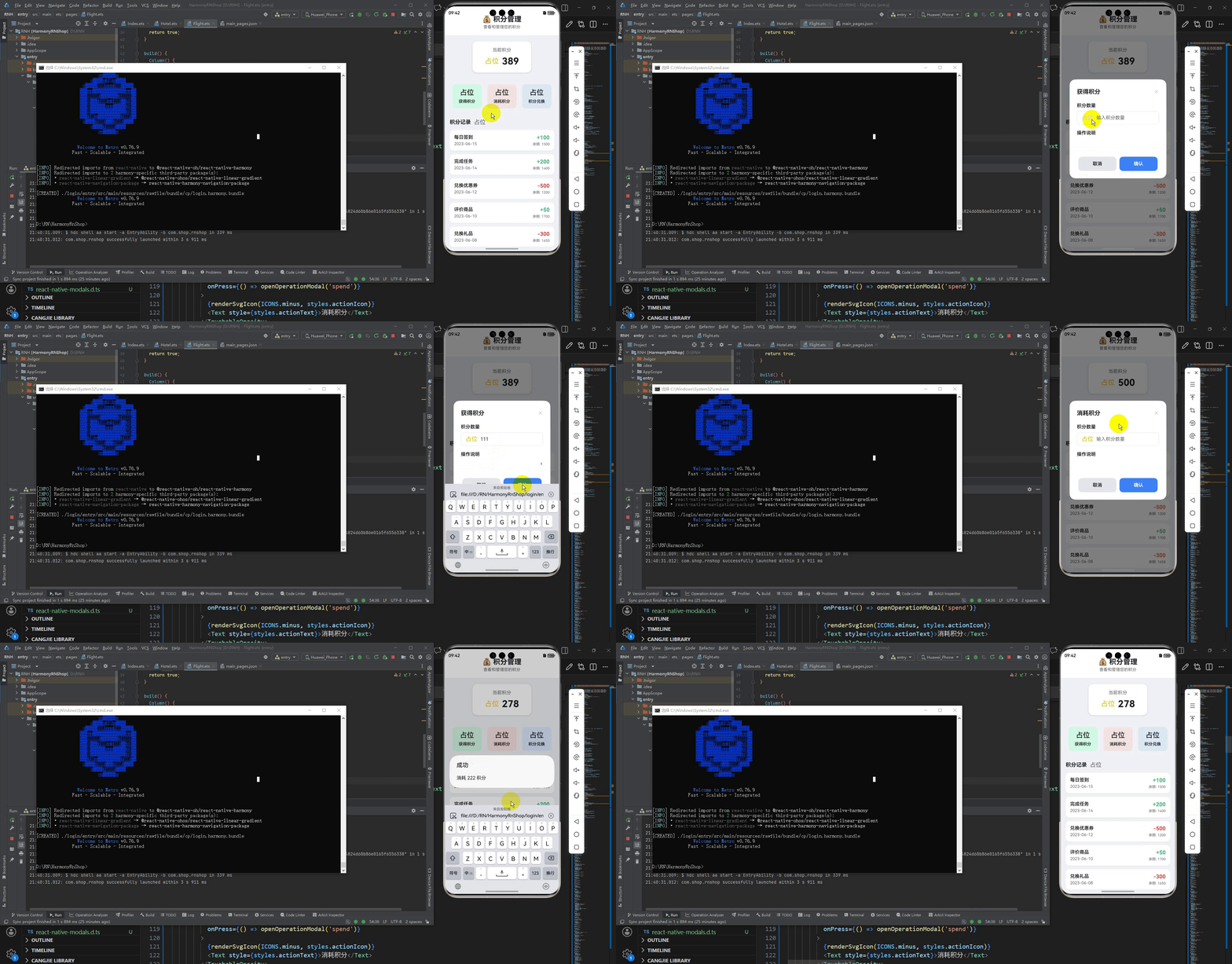
最后运行效果图如下显示:
欢迎大家加入开源鸿蒙跨平台开发者社区,一起共建开源鸿蒙跨平台生态。

智能硬件社区聚焦AI智能硬件技术生态,汇聚嵌入式AI、物联网硬件开发者,打造交流分享平台,同步全国赛事资讯、开展 OPC 核心人才招募,助力技术落地与开发者成长。
更多推荐
 3
3 0
0- 0



 已为社区贡献3条内容

所有评论(0)