摄像头网络开发案例(Blazor实战)
目录
第一章 RTSP流确认与测试
一、RTSP流的确认
海康威视摄像头的RTSP地址格式为 rtsp://用户名:密码@IP:554/Streaming/Channels/通道号,可通过VLC或SDK进行实时视频流播放。
RTSP地址格式
海康威视最新的RTSP取流格式(2023年更新)如下:
-
主码流第1通道:
rtsp://用户名:密码@IP:554/Streaming/Channels/101 -
子码流第1通道:
rtsp://用户名:密码@IP:554/Streaming/Channels/102 -
主码流第2通道:
rtsp://用户名:密码@IP:554/Streaming/Channels/201
二、RTSP流获取和播放方法
-
下载并安装VLC。
-
打开
[媒体] > [打开网络串流],输入RTSP地址。 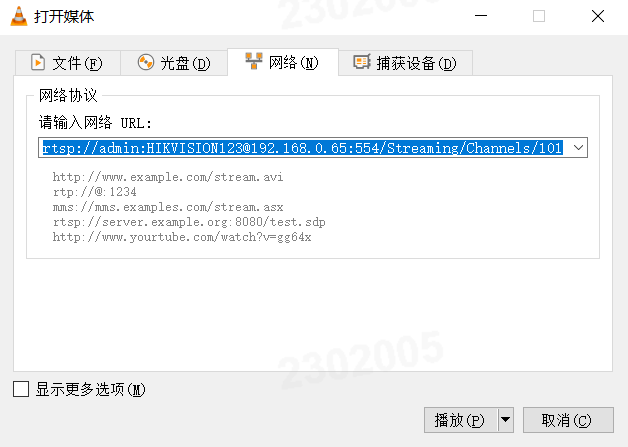
可以正常播放说明RTSP流正常。
第二章 常见网络摄像机 (摄像头)的端口及RTSP地址
一、海康威视
默认IP地址:192.168.1.64/DHCP 用户名admin 密码自己设
端口:“HTTP 端口”(默认为 80)、“RTSP 端口”(默认为 554)、“HTTPS 端 口”(默认 443)和“服务端口”(默认 8000),ONVIF端口 80。
RTSP地址:rtsp://[username]:[password]@[ip]:[port]/[codec]/[channel]/[subtype]/av_stream
说明:
username: 用户名。例如admin。
password: 密码。例如12345。
ip: 为设备IP。例如 192.0.0.64。
port: 端口号默认为554,若为默认可不填写。
codec:有h264、MPEG-4、mpeg4这几种。
channel: 通道号,起始为1。例如通道1,则为ch1。
subtype: 码流类型,主码流为main,辅码流为sub。
例如,请求海康摄像机通道1的主码流,Url如下
主码流:
rtsp://admin:12345@192.0.0.64:554/h264/ch1/main/av_stream
子码流:
rtsp://admin:12345@192.0.0.64/mpeg4/ch1/sub/av_stream
默认IP地址:192.168.1.108 用户名/密码:admin/admin
端口:TCP 端口 37777/UDP 端口 37778/http 端口 80/RTSP 端口号默认为 554/HTTPs 443/ONVIF 功能默认为关闭,端口80
RTSP地址:rtsp://username:password@ip:port/cam/realmonitor?channel=1&subtype=0
说明:
username: 用户名。例如admin。
password: 密码。例如admin。
ip: 为设备IP。例如 10.7.8.122。
port: 端口号默认为554,若为默认可不填写。
channel: 通道号,起始为1。例如通道2,则为channel=2。
subtype: 码流类型,主码流为0(即subtype=0),辅码流为1(即subtype=1)。
例如,请求某设备的通道2的辅码流,Url如下
rtsp://admin:admin@10.12.4.84:554/cam/realmonitor?channel=2&subtype=1
三、雄迈/巨峰
默认IP地址:192.168.1.10 用户名admin 密码空
端口:TCP端口:34567 和 HTTP端口:80,onvif端口是8899
RTSP地址:rtsp://10.6.3.57:554/user=admin&password=&channel=1&stream=0.sdp?
10.6.3.57这个是被连接的设备的IP
554这个是RTSP服务的端口号,可以在设备的网络服务里面更改
user=admin这个是设备的登录用户名
password= 密码空
channel=1 第一通道
stream=0.sdp?主码流
stream=1.sdp?副码流
四、天视通
默认IP地址:192.168.0.123 用户名admin 密码123456
端口:http端口80 数据端口8091 RTSP端口554 ONVIF端口 80
RTSP地址:主码流地址:rtsp://192.168.0.123:554/mpeg4
子码流地址:rtsp://192.168.0.123:554/mpeg4cif
需要入密码的地址: 主码流 rtsp://admin:123456@192.168.0.123:554/mpeg4
子码流 rtsp://admin:123456@192.168.0.123:554/mpeg4cif
图片抓拍地址:http://ip/snapshot.cgi
五、中维/尚维
默认IP地址:DHCP 默认用户名admin 默认密码 空
RTSP地址:rtsp://0.0.0.0:8554/live1.264(次码流)
rtsp://0.0.0.0:8554/live0.264 (主码流)
六、久安
RTSP地址:rtsp://IP:port(website port)/ch0_0.264(主码流)
rtsp://IP:port(website port)/ch0_1.264(子码流)
七、技威/YOOSEE
默认IP地址:DHCP 用户名admin 密码123RTSP地址:
主码流:rtsp://IPadr:554/onvif1
次码流:rtsp://IPadr:554/onvif2onvif端口是5000设备发现的端口是3702
八、V380
默认IP地址:DHCP 用户名admin 密码空/admin
onvif端口8899
RTSP地址:主码流rtsp://ip//live/ch00_1
子码流rtsp://ip//live/ch00_0
九、宇视
默认IP地址: 192.168.0.13/DHCP 默认用户名 admin 和默认密码 123456
端口:HTTP 80/RTSP 554/HTTPS 110(443)/onvif端口 80
RTSP地址:rtsp://用户名:密码@ip:端口号/video123 123对应3个码流
十、天地伟业
默认IP地址:192.168.1.2 用户名“Admin”、密码“1111”
onvif端口号“8080”
RTSP地址:rtsp://192.168.1.2
十一、巨龙/JVT
默认IP地址:192.168.1.88 默认用户名 admin 默认密码admin
RTSP地址:
主码流地址:rtsp://IP地址/av0_0
次码流地址:rtsp://IP地址/av0_1onvif端口 2000
第三章 使用webrtc-streamer转码RTSP
一、webrtc-streamer使用
正常RTSP流不能通过Web播放器直接播放,需要工具将RTSP流转码才可以转换。网上有很多转码工具。我这里使用webrtc-streamer来转码,因为它开源免费,而且转换效率高。也验证使用ffmpeg转码,它会有3-5秒的延迟,实时性差一些。所以就使用了webrtc-streamer。具体过程如下:
1.下载webrtx-streamer
具体下载地址:
https://github.com/mpromonet/webrtc-streamer/releases
我下载的是0.8.15版本,有需要的可以下载源码自己研究。我直接下载了releases使用。

2.使用webrtx-streamer
解压并打开webrtc-stramer.exe即可。我需要设置IP地址,所以自定义了脚步文件。有需要的可以参照我的脚步文件修改。
@echo off
title 内网RTSP播放器服务 - 纯本地模式
echo ========================================
echo   启动纯内网模式 webrtc-streamer
echo   不依赖任何外网连接
echo ========================================
echo.
echo 服务地址: http://192.168.0.33:8001
echo 状态: 已禁用STUN外网连接
echo.
echo 请保持此窗口运行,不要关闭!
echo ========================================

webrtc-streamer.exe -H 192.168.0.33:8001 -s - -o

pause
然后运行即可。现在所有的配置都完成了
二、测试
我这里直接使用html文件测试。具体代码如下
<!DOCTYPE html>
<html>
<head>
<meta charset="utf-8">
<title>海康RTSP - 4路监控大屏</title>
<style>
* {
margin: 0;
padding: 0;
box-sizing: border-box;
}
body {
font-family: 'Microsoft YaHei', Arial, sans-serif;
background: #1a1a2e;
padding: 20px;
}
h2 {
color: #fff;
text-align: center;
margin-bottom: 20px;
}
/* 4宫格布局 */
.grid-container {
display: grid;
grid-template-columns: repeat(2, 1fr);
grid-gap: 15px;
max-width: 1400px;
margin: 0 auto;
}
/* 每个视频卡片 */
.video-card {
background: #16213e;
border-radius: 12px;
overflow: hidden;
box-shadow: 0 4px 15px rgba(0,0,0,0.3);
transition: transform 0.2s;
}
.video-card:hover {
transform: scale(1.02);
}
.video-header {
background: #0f3460;
padding: 12px 15px;
color: #fff;
display: flex;
justify-content: space-between;
align-items: center;
}
.video-title {
font-weight: bold;
font-size: 14px;
}
.video-status {
font-size: 12px;
padding: 4px 8px;
border-radius: 4px;
background: #e94560;
}
.video-status.connected {
background: #28a745;
}
.video-container {
position: relative;
background: #000;
min-height: 300px;
display: flex;
align-items: center;
justify-content: center;
}
video {
width: 100%;
height: auto;
max-height: 350px;
background: #000;
}
.video-controls {
padding: 10px;
background: #0f3460;
display: flex;
gap: 10px;
justify-content: center;
}
.video-controls button {
padding: 6px 15px;
background: #e94560;
color: white;
border: none;
border-radius: 4px;
cursor: pointer;
font-size: 12px;
transition: all 0.2s;
}
.video-controls button:hover {
background: #ff6b6b;
transform: scale(1.05);
}
.video-controls button.reconnect {
background: #007bff;
}
.video-controls button.reconnect:hover {
background: #0056b3;
}
.input-panel {
background: #16213e;
border-radius: 12px;
padding: 20px;
margin-bottom: 20px;
max-width: 1400px;
margin-left: auto;
margin-right: auto;
}
.input-row {
display: grid;
grid-template-columns: repeat(2, 1fr);
gap: 15px;
margin-bottom: 15px;
}
.input-group {
display: flex;
flex-direction: column;
gap: 5px;
}
.input-group label {
color: #fff;
font-size: 12px;
font-weight: bold;
}
.input-group input {
padding: 10px;
border: 1px solid #0f3460;
border-radius: 6px;
background: #0f3460;
color: #fff;
font-size: 12px;
}
.input-group input:focus {
outline: none;
border-color: #e94560;
}
.global-controls {
display: flex;
gap: 15px;
justify-content: center;
margin-top: 20px;
}
.global-controls button {
padding: 10px 30px;
background: #28a745;
color: white;
border: none;
border-radius: 6px;
cursor: pointer;
font-size: 14px;
font-weight: bold;
}
.global-controls button.stop-all {
background: #dc3545;
}
.global-controls button:hover {
opacity: 0.9;
transform: scale(1.02);
}
@media (max-width: 768px) {
.grid-container {
grid-template-columns: 1fr;
}
.input-row {
grid-template-columns: 1fr;
}
}
.loading {
color: #fff;
font-size: 14px;
}
.error-msg {
color: #e94560;
font-size: 12px;
text-align: center;
}
</style>
</head>
<body>
<h2>📹 海康威视RTSP - 4路监控大屏</h2>
<!-- RTSP地址配置面板 -->
<div class="input-panel">
<div class="input-row">
<div class="input-group">
<label>📷 通道1 RTSP地址</label>
<input type="text" id="rtsp1" placeholder="rtsp://admin:HIKVISION123@192.168.0.64:554/Streaming/Channels/101">
</div>
<div class="input-group">
<label>📷 通道2 RTSP地址</label>
<input type="text" id="rtsp2" placeholder="rtsp://admin:HIKVISION123@192.168.0.65:554/Streaming/Channels/102">
</div>
</div>
<div class="input-row">
<div class="input-group">
<label>📷 通道3 RTSP地址</label>
<input type="text" id="rtsp3" placeholder="rtsp://admin:HIKVISION123@192.168.0.66:554/Streaming/Channels/103">
</div>
<div class="input-group">
<label>📷 通道4 RTSP地址</label>
<input type="text" id="rtsp4" placeholder="rtsp://admin:HIKVISION123@192.168.0.67:554/Streaming/Channels/104">
</div>
</div>
<div class="global-controls">
<button onclick="startAll()">▶ 播放全部</button>
<button onclick="stopAll()" class="stop-all">⏹ 停止全部</button>
</div>
</div>
<!-- 4宫格视频显示区域 -->
<div class="grid-container" id="videoGrid">
<!-- 视频1 -->
<div class="video-card" data-channel="1">
<div class="video-header">
<span class="video-title">📷 通道 1</span>
<span class="video-status" id="status1">未连接</span>
</div>
<div class="video-container">
<video id="video1" muted autoplay playsinline></video>
</div>
<div class="video-controls">
<button onclick="playSingle(1)">▶ 播放</button>
<button onclick="stopSingle(1)">⏹ 停止</button>
<button onclick="reconnectSingle(1)" class="reconnect">🔄 重连</button>
</div>
</div>
<!-- 视频2 -->
<div class="video-card" data-channel="2">
<div class="video-header">
<span class="video-title">📷 通道 2</span>
<span class="video-status" id="status2">未连接</span>
</div>
<div class="video-container">
<video id="video2" muted autoplay playsinline></video>
</div>
<div class="video-controls">
<button onclick="playSingle(2)">▶ 播放</button>
<button onclick="stopSingle(2)">⏹ 停止</button>
<button onclick="reconnectSingle(2)" class="reconnect">🔄 重连</button>
</div>
</div>
<!-- 视频3 -->
<div class="video-card" data-channel="3">
<div class="video-header">
<span class="video-title">📷 通道 3</span>
<span class="video-status" id="status3">未连接</span>
</div>
<div class="video-container">
<video id="video3" muted autoplay playsinline></video>
</div>
<div class="video-controls">
<button onclick="playSingle(3)">▶ 播放</button>
<button onclick="stopSingle(3)">⏹ 停止</button>
<button onclick="reconnectSingle(3)" class="reconnect">🔄 重连</button>
</div>
</div>
<!-- 视频4 -->
<div class="video-card" data-channel="4">
<div class="video-header">
<span class="video-title">📷 通道 4</span>
<span class="video-status" id="status4">未连接</span>
</div>
<div class="video-container">
<video id="video4" muted autoplay playsinline></video>
</div>
<div class="video-controls">
<button onclick="playSingle(4)">▶ 播放</button>
<button onclick="stopSingle(4)">⏹ 停止</button>
<button onclick="reconnectSingle(4)" class="reconnect">🔄 重连</button>
</div>
</div>
</div>
<script>
// 存储每个通道的播放器实例和WebRTC连接
const players = {};
let webRtcServers = {};
// 获取WHEP URL
function getWhepUrl(rtspUrl) {
if (!rtspUrl) return null;
return `http://192.168.0.33:8001/api/whep?url=${encodeURIComponent(rtspUrl)}&options=rtptransport%3Dtcp%26timeout%3D60`;
}
// 播放单个通道
async function playSingle(channel) {
const rtspInput = document.getElementById(`rtsp${channel}`);
const rtspUrl = rtspInput.value.trim();
if (!rtspUrl) {
updateStatus(channel, '请输入RTSP地址', 'error');
alert(`通道${channel}:请输入RTSP地址`);
return;
}
// 先停止当前通道的播放
stopSingle(channel);
const video = document.getElementById(`video${channel}`);
const statusSpan = document.getElementById(`status${channel}`);
updateStatus(channel, '连接中...', 'loading');
const whepUrl = getWhepUrl(rtspUrl);
if (!whepUrl) {
updateStatus(channel, '地址无效', 'error');
return;
}
try {
// 动态加载whep-video组件(如果还未加载)
if (!customElements.get('whep-video')) {
await loadWhepVideoComponent();
}
// 创建whep-video元素
const whepElement = document.createElement('whep-video');
whepElement.setAttribute('muted', 'true');
whepElement.setAttribute('autoplay', 'true');
whepElement.setAttribute('src', whepUrl);
whepElement.style.width = '100%';
whepElement.style.height = 'auto';
// 保存原video元素的父容器
const container = video.parentNode;
const oldVideo = video;
// 替换video元素
container.replaceChild(whepElement, oldVideo);
// 存储新元素引用
players[channel] = whepElement;
document.getElementById(`video${channel}`).id = ''; // 清除旧ID
whepElement.id = `video${channel}`;
// 监听连接状态
whepElement.addEventListener('load', () => {
updateStatus(channel, '已连接', 'connected');
});
whepElement.addEventListener('error', (e) => {
console.error(`通道${channel}错误:`, e);
updateStatus(channel, '连接失败', 'error');
});
updateStatus(channel, '播放中', 'connected');
} catch (error) {
console.error(`通道${channel}播放失败:`, error);
updateStatus(channel, '播放失败', 'error');
// 降级方案:直接使用video标签
video.src = whepUrl;
video.play().catch(e => {
console.error(`通道${channel}降级播放也失败:`, e);
});
updateStatus(channel, '播放中(备用)', 'connected');
}
}
// 停止单个通道
function stopSingle(channel) {
const video = document.getElementById(`video${channel}`);
if (video) {
if (video.srcObject) {
video.srcObject.getTracks().forEach(track => track.stop());
video.srcObject = null;
}
video.src = '';
// 如果是whep-video元素,尝试移除
if (video.tagName === 'WHEP-VIDEO' && video.remove) {
const newVideo = document.createElement('video');
newVideo.id = `video${channel}`;
newVideo.muted = true;
newVideo.autoplay = true;
newVideo.playsInline = true;
newVideo.style.width = '100%';
newVideo.style.height = 'auto';
video.parentNode.replaceChild(newVideo, video);
}
}
updateStatus(channel, '已停止', '');
}
// 重连单个通道
function reconnectSingle(channel) {
playSingle(channel);
}
// 播放所有通道
function startAll() {
for (let i = 1; i <= 4; i++) {
setTimeout(() => {
playSingle(i);
}, i * 500); // 延迟启动,避免同时请求
}
}
// 停止所有通道
function stopAll() {
for (let i = 1; i <= 4; i++) {
stopSingle(i);
}
}
// 更新状态显示
function updateStatus(channel, message, type) {
const statusSpan = document.getElementById(`status${channel}`);
if (statusSpan) {
statusSpan.textContent = message;
statusSpan.className = 'video-status';
if (type === 'connected') {
statusSpan.classList.add('connected');
}
}
}
// 加载WHEP视频组件
function loadWhepVideoComponent() {
return new Promise((resolve, reject) => {
if (customElements.get('whep-video')) {
resolve();
return;
}
const script = document.createElement('script');
script.src = 'http://192.168.0.33:8001/libs/whep-video.component.js';
script.onload = () => resolve();
script.onerror = () => reject(new Error('加载whep-video组件失败'));
document.head.appendChild(script);
});
}
// 设置默认测试地址
function setDefaultUrls() {
const testUrl = 'rtsp://admin:HIKVISION123@192.168.0.64:554/Streaming/Channels/101';
document.getElementById('rtsp1').value = 'rtsp://admin:HIKVISION123@192.168.0.64:554/Streaming/Channels/101';
document.getElementById('rtsp2').value = 'rtsp://admin:HIKVISION123@192.168.0.65:554/Streaming/Channels/101';
document.getElementById('rtsp3').value = 'rtsp://admin:HIKVISION123@192.168.0.66:554/Streaming/Channels/101';
document.getElementById('rtsp4').value = 'rtsp://admin:HIKVISION123@192.168.0.67:554/Streaming/Channels/101';
}
// 页面加载时设置默认地址
window.onload = () => {
setDefaultUrls();
console.log('4路监控页面已加载,请点击"播放全部"按钮');
};
</script>
</body>
</html>根据自己的情况修改对应的ip地址即可。同时如果显示正常,部署的webrtc-stramer就会显示对应的信息。
第四章 Blazor测试
创建对应Blazor项目,我这里为了使用统一创建了Blaozr类库项目,这样使用者不用关心具体的实现。同时也通过PTZ实现的实时操作摄像机,和本地录像功能。代码如下
【免费】Blazor实现海康摄像机实时显示、实时控制、放大、缩小、实时录像功能包含Blazor组件代码和摄像机实时显示、控制、放大、缩小,录像功能的测试代码资源-CSDN下载
第五章 注意事项
1.海康摄像机一定要设置rtsp流开启。进入海康摄像机网页设置网络设置中开启rtsp流。
2.将视频设置H264格式,也是进入摄像机设置
3.需要通过PZT实时操作需要将摄像头网络配置的http(s)的Web配置修改为disget/base。不然不能控制

智能硬件社区聚焦AI智能硬件技术生态,汇聚嵌入式AI、物联网硬件开发者,打造交流分享平台,同步全国赛事资讯、开展 OPC 核心人才招募,助力技术落地与开发者成长。
更多推荐
 17
17 0
0- 0


 已为社区贡献2条内容

所有评论(0)