STM32项目分享:智能宠物箱系统设计
·
STM32项目分享:智能宠物箱系统设计
一、介绍
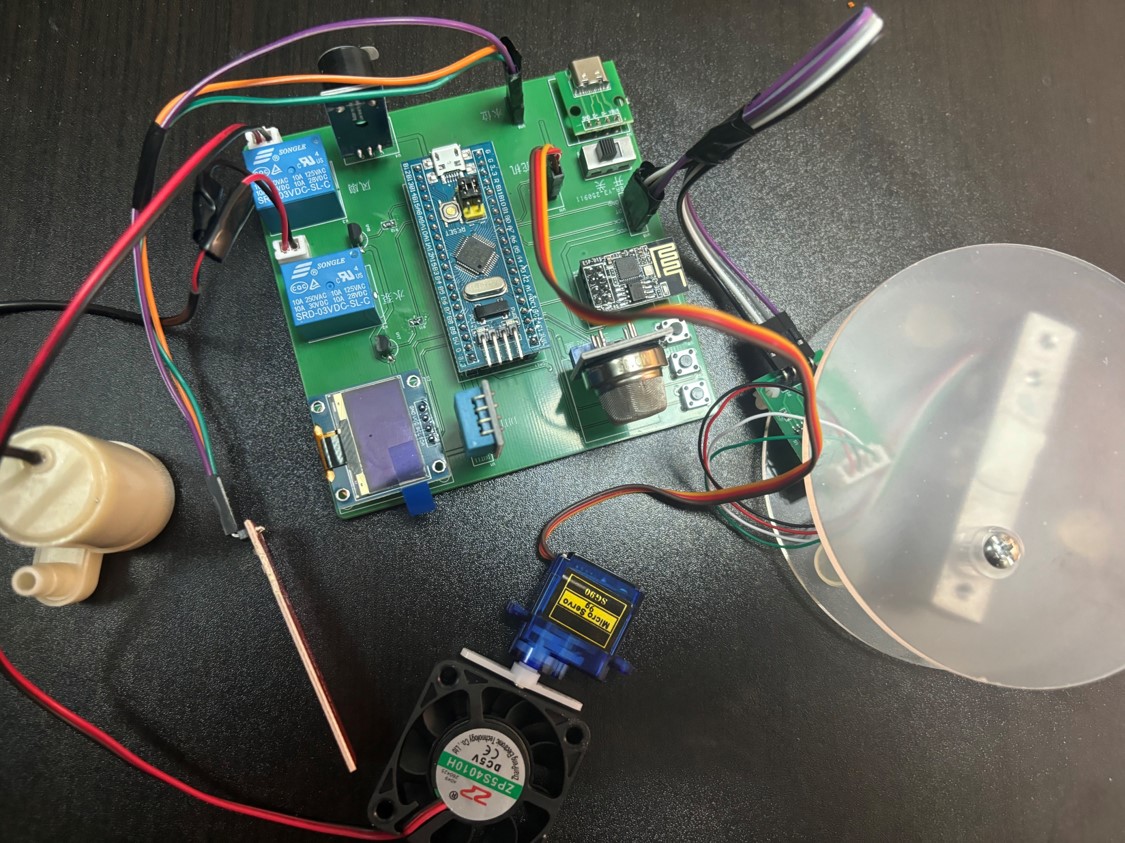
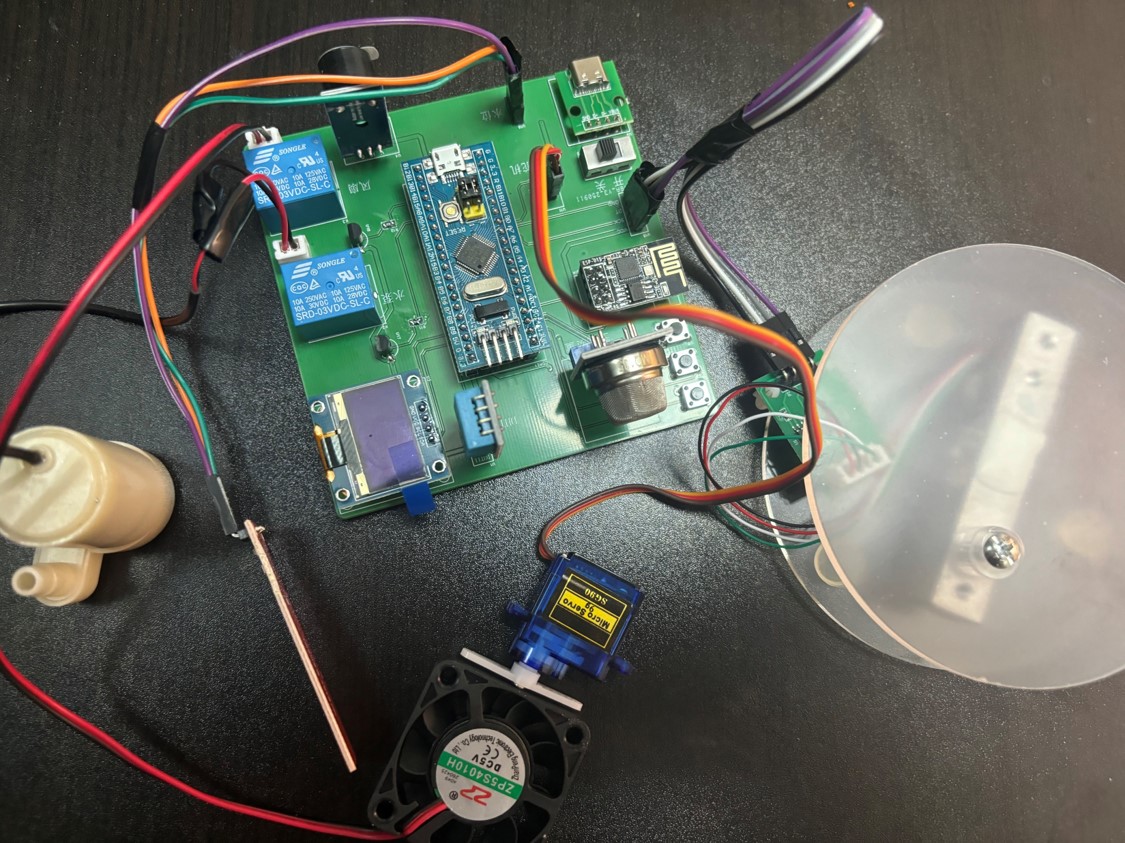
项目成品图片:
二、项目功能介绍
1.功能介绍
- DHT11温湿度传感器实时检测宠物箱环境里的温湿度,并实时显示在oled屏幕上
- MQ135传感器实时监测宠物箱空气质量并显示在oled屏幕上
- HX711称重传感器监测宠物箱剩余粮食重量
- 水位传感器监测宠物箱水杯中剩余水高度
- 通过舵机模拟来投放食物和水,用风扇进行通风
- 通过 MQTT 协议将所有数据传送到 APP 以供管理和配置,可通过智能手机远程监控和查看数据变化,根据设定阈值来对宠物屋进行自动、定时和手动控制
2.主要元器件介绍
| 元件 | 数量 |
|---|---|
| Stm32f103c8t6单片机核心板 | 1 |
| 水位传感器模块 | 1 |
| MQ135传感器 | 1 |
| HX711压力传感器 | 1 |
| 蜂鸣器模块 | 1 |
| DHT11温湿度传感器 | 1 |
| Esp8266模块 | 1 |
| SG90舵机模块 | 1 |
| 5v小水泵模块 | 1 |
| 5v小风扇模块 | 1 |
| 665轻触开关 | 3 |
| OLED屏幕 | 1 |
| SRD-03VDC-SL-C继电器 | 2 |
| 三极管 | 2 |
| INA226功率检测模块 | 2 |
| 排针排母 | 若干 |
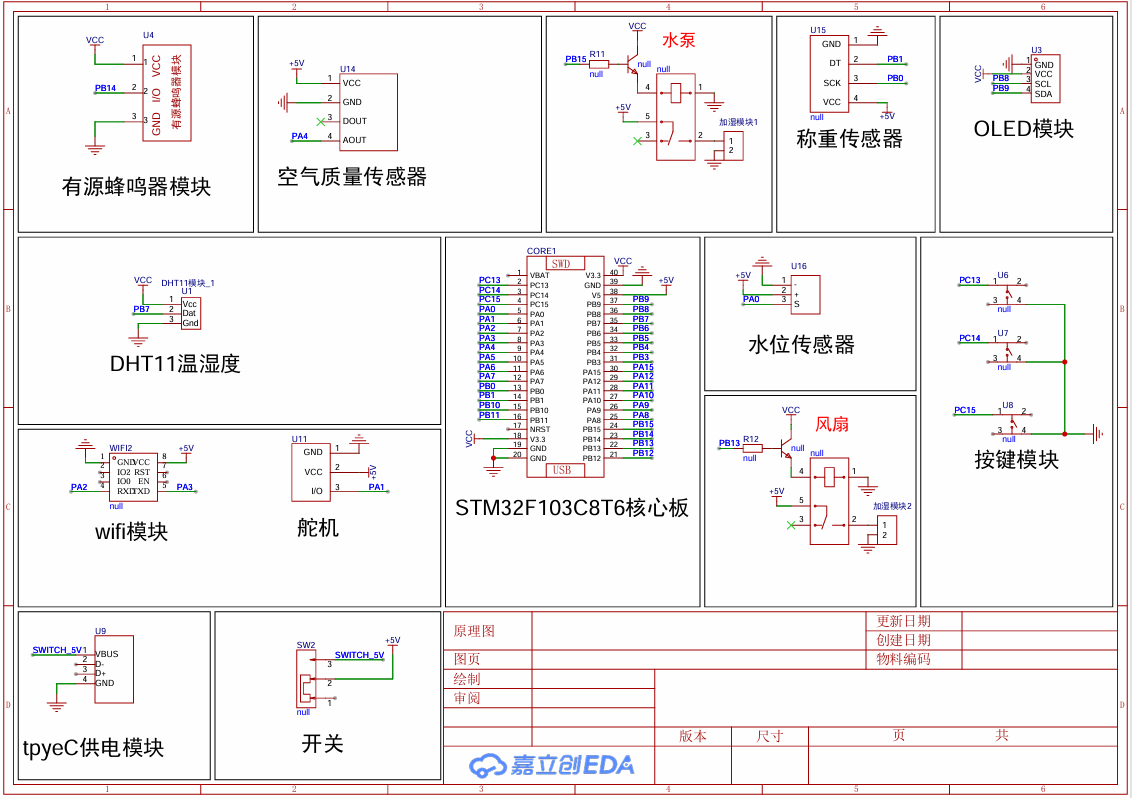
三、原理图设计
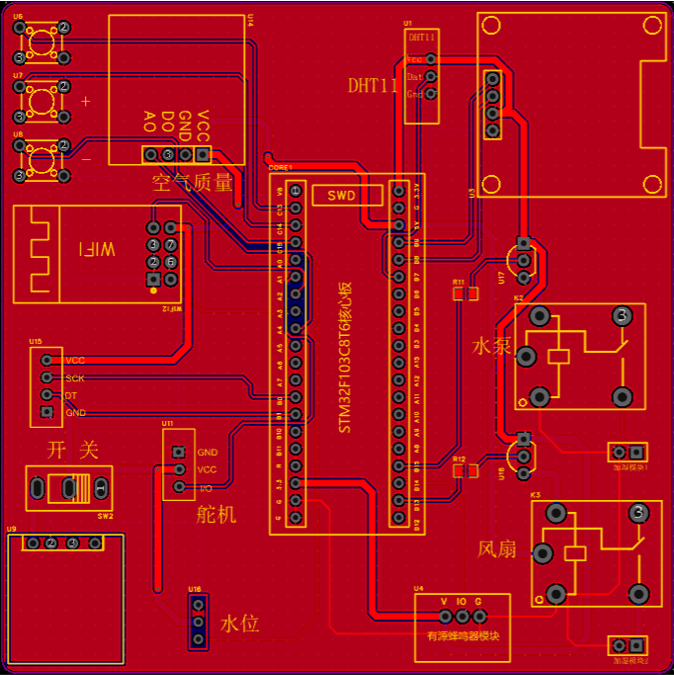
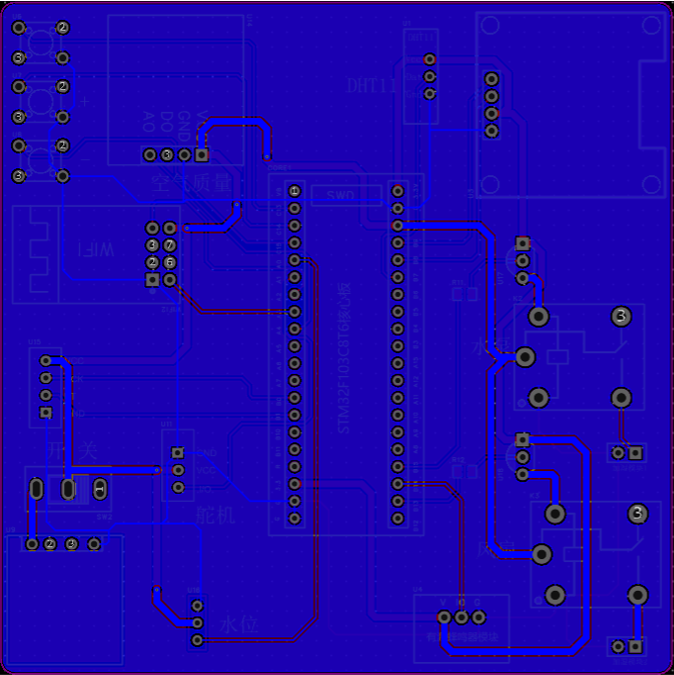
四、PCB设计
五、单片机代码设计
mian.c文件:
/******************************************************************************
      项目名称:基于STM32的智能宠物箱系统
     实现功能:见前几章简介
     作者:坤博单片机设计
     开源说明:使用时保留作者说明,仅供学习使用,商用必究!!!
******************************************************************************/
#include <stdio.h>
//网络协议层
#include "onenet.h"

//网络设备
#include "esp8266.h"

//硬件驱动
#include "delay.h"
#include "usart.h"
#include "led.h"
#include "key.h"
#include "dht11.h"
#include "OLED.h"
#include "Timer.h"
#include "AD.h"
#include "serve.h"
#include "Beep.h"
#include "ds18b20.h"
#include "ds1302.h"
#include "hx711.h"
#include "main.h"

//C库
#include <string.h>

//应用层
#include "UI.h"
#include "control.h"

#define ESP8266_ONENET_INFO		"AT+CIPSTART=\"TCP\",\"mqtts.heclouds.com\",1883\r\n"


/*
************************************************************
*	函数名称:	Hardware_Init
*
*	函数功能:	硬件初始化
*
*	入口参数:	无
*
*	返回参数:	无
*
*	说明:		初始化单片机功能以及外接设备
************************************************************
*/

void Hardware_Init(void)
{
	NVIC_PriorityGroupConfig(NVIC_PriorityGroup_2);	//中断控制器分组设置
	Delay_Init();									//systick初始化
	Timer_Init();
	Usart1_Init(9600);							//串口1,打印信息用
	Usart3_Init(38400);		             //gps
	Usart2_Init(115200);							//驱动ESP8266用
  Key_Init();        //按键初始化
	AD_Init();         //ADC初始化
	Beep_Init();       //蜂鸣器初始化
	HX711_Init();       //称重计初始化
	fangshui_init();    //水泵初始化
	Fan_Init();         //风扇初始化
	Servo_Init();       //舵机初始化
	OLED_Init();			//初始化OLED
	OLED_Clear();
	DelayMs(1000);
	//称重传感器清零
	reset = HX711_GetData();

	OLED_ShowCHinese(32,2,38);									//等待联网
	OLED_ShowCHinese(48,2,39);								  //等待联网
	OLED_ShowCHinese(64,2,40);									//等待联网
	OLED_ShowCHinese(80,2,41);								  //等待联网
}

/*
************************************************************
*	函数名称:	main
*
*	函数功能:
*
*	入口参数:	无
*
*	返回参数:	0
*
*	说明:
************************************************************
*/
uint8_t key_num = 0;
int main(void)
{
	unsigned char *dataPtr = NULL;
	Hardware_Init();				//初始化外围硬件
	ESP8266_Init();					//初始化ESP8266
	//UsartPrintf(USART_DEBUG, "Connect MQTTs Server...\r\n");
	while(ESP8266_SendCmd(ESP8266_ONENET_INFO, "CONNECT"))
	DelayXms(500);
	//UsartPrintf(USART_DEBUG, "Connect MQTT Server Success\r\n");
	while(OneNet_DevLink())			//接入OneNET
	DelayXms(500);
	OneNET_Subscribe();
	OLED_Clear();
	while(1)
	{
		key_num = Key_GetNum(&key_num);
		//总控制
		all_control();
		if(key_num != 0)
		{
			Deal_KeyNum(key_num);
			UI_update(now_page);
			key_num = 0;
		}
			if(++data_timeCount>=10)
			{
				//温度数据
				if (DHT11_Get_TemperAndHumi(&DHT11_Data) == 1)  // 如果读取成功
				{
						temp_value = DHT11_Data.temp_int;
						humi_value = DHT11_Data.humi_int;
				}
				//获取重量
				weight_rawvalue = HX711_GetData();
				weight_value=(float)(reset - weight_rawvalue)*Weights/(float)(Weights_100-reset);
				if(weight_value < 0)
				{
					// 重量发生变化时重置稳定标志
					weight_value = 0;
				}
				//获取水位传感器的值
				shuiwei_value = (4095-AD_GetValue(ADC_Channel_0))*45/(4095-2500);
				//获取空气质量的数值
				float Mq135_V = AD_GetValue(ADC_Channel_4)*3.3/4095.0;
				anqi_value = pow((3.4880*10*Mq135_V)/(5-Mq135_V),(1.0/0.3203));
				//更新页面
				UI_update(now_page);
				data_timeCount =0;
			}
			//更新页面
			if(++ui_timeCount >=20)
			{
				UI_update(now_page);
				ui_timeCount = 0;
			}
			if(++timeCount >= 100)									//发送间隔1s(100) 1对应
			{
				OneNet_SendData();									//发送数据
				timeCount = 0;
				ESP8266_Clear();
			}
		dataPtr = ESP8266_GetIPD(0);
		if(dataPtr != NULL)
			OneNet_RevPro(dataPtr);
		DelayMs(10);

	}

	}
六、手机App代码设计
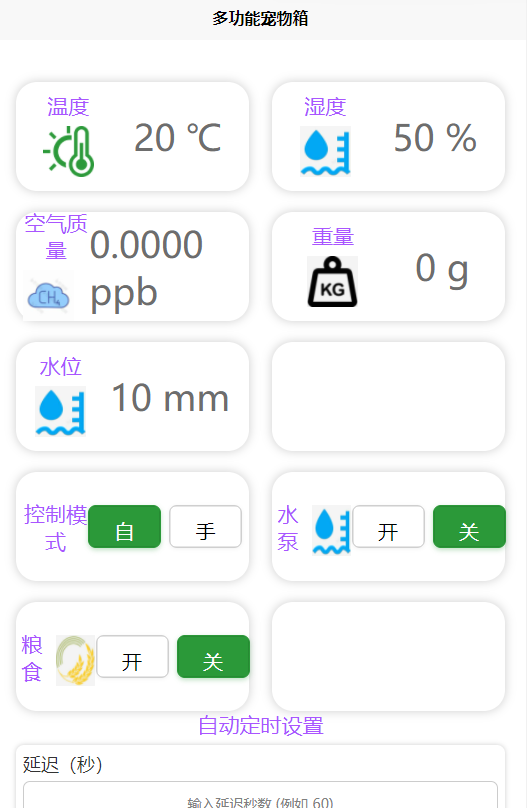
<template>
	<view class="wrap">
		<view class="dev-area">

			<view class="dev-cart">
				<view class="">
					<view class="dev-name">温度</view>
					<image class="dev-logo" src="../../static/temp.png" mode=""></image>
				</view>
				<view class="dev-data">{{temp}} ℃</view>
			</view>

			<view class="dev-cart">
				<view class="">
					<view class="dev-name">湿度</view>
					<image class="dev-logo" src="../../static/water.jpg" mode=""></image>
				</view>
				<view class="dev-data">{{humi}} %</view>
			</view>


			<view class="dev-cart">
				<view class="">
					<view class="dev-name">空气质量</view>
					<image class="dev-logo" src="../../static/jiawan.jpg" mode=""></image>
				</view>
				<view class="dev-data">{{anqi_value}} ppb</view>
			</view>

			<view class="dev-cart">
				<view class="">
					<view class="dev-name">重量</view>
					<image class="dev-logo" src="../../static/weight.jpg" mode=""></image>
				</view>
				<view class="dev-data">{{weight_value}} g</view>
			</view>

			<view class="dev-cart">
				<view class="">
					<view class="dev-name">水位</view>
					<image class="dev-logo" src="../../static/water.jpg" mode=""></image>
				</view>
				<view class="dev-data">{{shuiwei_value}} mm</view>
			</view>
			<view class="dev-cart">
			</view>

			<!-- 控制模式:由 switch 改为 两个按钮(即时更新 + 请求回滚) -->
			<view class="dev-cart control-cart">
				<view class="control-left">
					<view class="dev-name">控制模式</view>
				</view>
				<view class="control-right">
					<button
						class="toggle-btn"
						:class="{active: mode_value}"
						:disabled="modeLoading"
						@click="setMode(true)"
					>自</button>
					<button
						class="toggle-btn"
						:class="{active: !mode_value}"
						:disabled="modeLoading"
						@click="setMode(false)"
					>手</button>
				</view>
			</view>

			<!-- 水泵 -->
			<view class="dev-cart control-cart">
				<view class="control-left">
					<view class="dev-name">水泵</view>
					<image class="dev-logo" src="../../static/water.jpg" mode=""></image>
				</view>
				<view class="control-right">
					<button
						class="toggle-btn"
						:class="{active: zhileng}"
						:disabled="shuibengLoading"
						@click="setShuibeng(true)"
					>开</button>
					<button
						class="toggle-btn"
						:class="{active: !zhileng}"
						:disabled="shuibengLoading"
						@click="setShuibeng(false)"
					>关</button>
				</view>
			</view>

			<!-- 粮食 -->
			<view class="dev-cart control-cart">
				<view class="control-left">
					<view class="dev-name">粮食</view>
					<image class="dev-logo" src="../../static/liangshi.jpg" mode=""></image>
				</view>
				<view class="control-right">
					<button
						class="toggle-btn"
						:class="{active: liang_switch}"
						:disabled="liangLoading"
						@click="setLiang(true)"
					>开</button>
					<button
						class="toggle-btn"
						:class="{active: !liang_switch}"
						:disabled="liangLoading"
						@click="setLiang(false)"
					>关</button>
				</view>
			</view>

			<view class="dev-cart">
			</view>

			<!-- 定时加水设置(直接输入延迟秒数) -->

				<view style="width:100%;">
					<view class="dev-name">自动定时设置</view>

					<div class="threshold-area">
						<div class="threshold-box">
							<div class="threshold-name">延迟(秒)</div>
							<div class="threshold-inputs" style="align-items:center;">
								<input type="number" min="1" max="86400" v-model="delaySeconds" placeholder="输入延迟秒数 (例如 60)"/>
							</div>

							<button class="set-btn" :disabled="timerLoading" @click="setTimer">
								{{ timerLoading ? '设置中...' : '设置(发送到云端 dingshi)' }}
							</button>

							<view style="margin-top:10rpx;font-size:24rpx;color:#666;">
								<text v-if="scheduledSeconds !== null">已设置:将在 {{ scheduledSeconds }} 秒后执行</text>
								<text v-else>(设置多少秒后进行换水和喂粮食)</text>
							</view>
						</div>
					</div>
				</view>


		</view>
	</view>
</template>

<script>
	const { createCommonToken } = require('@/key.js')
	export default {
		data() {
			return {
				temp: '',
				humi: '',
				anqi_value: '',
				CO2_value:'',
				weight_value: '',
				shuiwei_value: '',
				jingdu_value: '',
				weidu_value: '',
				zhileng: false,      // 水泵状态(true=开, false=关)
				jiare: false,
				jinshui: false,
				mode_value: true,    // 控制模式状态
				fangshui: false,
				liang_switch: false, // 粮食状态
				deng_switch: false,
				token: '',
				// loading 标志(避免重复点击并用于禁用按钮)
				modeLoading: false,
				liangLoading: false,
				shuibengLoading: false,
				// 定时器输入(直接为秒数)
				delaySeconds: '',
				timerLoading: false,
				scheduledSeconds: null, // 成功设置后保存的相对秒数(显示用)
				// 阈值设置
				beep_staus: 0,
				tempMin: 15,
				tempMax: 30,
				waterMin: 10,
				waterMax: 90,
				TDSMax: 100,
				// 喂食时间设置
				feedHours: 0,
				feedMinutes: 0,
				feedSeconds: 0,
				_fetchIntervalId: null
			}
		},
		onLoad() {
			const params = {
				author_key: "替换为自己的author_key",
				version: '2022-05-01',
				user_id: "替换为自己的user_id",
			}
			this.token = createCommonToken(params);
		},
		onShow() {
			this.fetchDevData();
			// 保存定时器 id,以便需要时清除
			this._fetchIntervalId = setInterval(() => {
				this.fetchDevData();
			}, 2500)
		},
		onHide() {
			if (this._fetchIntervalId) {
				clearInterval(this._fetchIntervalId);
				this._fetchIntervalId = null;
			}
		},
		methods: {
			fetchDevData() {
				uni.request({
					url: 'https://iot-api.heclouds.com/thingmodel/query-device-property',
					method: 'GET',
					data: {
						product_id: "替换为自己的product_id",
						device_name: 'test'
					},
					header: {
						'authorization': this.token
					},
					success: (res) => {
						// 注意:根据你的设备返回结构调整索引(保持和之前一致)
						if (res.data && res.data.data) {
							// 安全地赋值,防止数组越界
							const d = res.data.data;
							this.anqi_value = d[0] ? d[0].value : this.anqi_value;
							this.humi = d[2] ? d[2].value : this.humi;
							this.temp = d[6] ? d[6].value : this.temp;
							this.weight_value = d[7] ? d[7].value : this.weight_value;
							this.shuiwei_value = d[8] ? d[8].value : this.shuiwei_value;
							// 如果云端也返回 dingshi / 开关状态,可在这里同步
						}
					}
				});
			},

			// 设置控制模式(乐观更新:先立即更新 UI,再发请求;失败回滚)
			setMode(value) {
				if (this.mode_value === value || this.modeLoading) return;

				const prev = this.mode_value;
				this.mode_value = value;
				this.modeLoading = true;

				uni.request({
					url: 'https://iot-api.heclouds.com/thingmodel/set-device-property',
					method: 'POST',
					data: {
						product_id: '2lT4pEADEh',
						device_name: 'test',
						params: {
							"mode": value
						}
					},
					header: {
						'authorization': this.token
					},
					success: () => {
						this.modeLoading = false;
						console.log('控制模式 ' + (value ? 'ON' : 'OFF') + ' !');
					},
					fail: (err) => {
						this.mode_value = prev;
						this.modeLoading = false;
						console.error('设置控制模式失败', err);
						uni.showToast({ title: '设置控制模式失败', icon: 'none' });
					}
				});
			},

			// 设置粮食(liang_switch)
			setLiang(value) {
				if (this.liang_switch === value || this.liangLoading) return;

				const prev = this.liang_switch;
				this.liang_switch = value;
				this.liangLoading = true;

				uni.request({
					url: 'https://iot-api.heclouds.com/thingmodel/set-device-property',
					method: 'POST',
					data: {
						product_id: '2lT4pEADEh',
						device_name: 'test',
						params: {
							"liang_switch": value
						}
					},
					header: {
						'authorization': this.token
					},
					success: () => {
						this.liangLoading = false;
						console.log('粮食 ' + (value ? 'ON' : 'OFF') + ' !');
					},
					fail: (err) => {
						this.liang_switch = prev;
						this.liangLoading = false;
						console.error('设置粮食失败', err);
						uni.showToast({ title: '设置粮食失败', icon: 'none' });
					}
				});
			},

			// 设置水泵(shuibeng_switch)
			setShuibeng(value) {
				if (this.zhileng === value || this.shuibengLoading) return;

				const prev = this.zhileng;
				this.zhileng = value;
				this.shuibengLoading = true;

				uni.request({
					url: 'https://iot-api.heclouds.com/thingmodel/set-device-property',
					method: 'POST',
					data: {
						product_id: '2lT4pEADEh',
						device_name: 'test',
						params: {
							"shuibeng_switch": value
						}
					},
					header: {
						'authorization': this.token
					},
					success: () => {
						this.shuibengLoading = false;
						console.log('水泵 ' + (value ? 'ON' : 'OFF') + ' !');
					},
					fail: (err) => {
						this.zhileng = prev;
						this.shuibengLoading = false;
						console.error('设置水泵失败', err);
						uni.showToast({ title: '设置水泵失败', icon: 'none' });
					}
				});
			},

			// ---------- 新增:直接设置相对时间(秒)并下发到云端字段 dingshi ----------
			setTimer() {
				if (this.timerLoading) return;

				const sec = parseInt(this.delaySeconds, 10);
				if (Number.isNaN(sec) || sec <= 0) {
					uni.showToast({ title: '请输入大于0的整数秒数', icon: 'none' });
					return;
				}
				// 限制最大值为 1 天(可调整)
				if (sec > 86400) {
					uni.showToast({ title: '秒数不能超过 86400(24小时)', icon: 'none' });
					return;
				}

				this.timerLoading = true;

				uni.request({
					url: 'https://iot-api.heclouds.com/thingmodel/set-device-property',
					method: 'POST',
					data: {
						product_id: '2lT4pEADEh',
						device_name: 'test',
						params: {
							"dingshi": sec
						}
					},
					header: {
						'authorization': this.token
					},
					success: (res) => {
						this.timerLoading = false;
						this.scheduledSeconds = sec;
						uni.showToast({ title: '定时设置成功', icon: 'success' });
						console.log('定时 (dingshi) 已发送:', sec, '秒');
					},
					fail: (err) => {
						this.timerLoading = false;
						uni.showToast({ title: '定时设置失败', icon: 'none' });
						console.error('定时设置失败', err);
					}
				});
			}
		}
	}
</script>

<style>
	.wrap {
		padding: 30rpx;
		background-size: cover;  /* 背景图片铺满整个页面 */
		background-position: center;  /* 背景居中显示 */
		background-repeat: no-repeat;  /* 防止背景图片重复 */
	}

	.dev-area {
		display: flex;
		justify-content: space-between;
		flex-wrap: wrap;
	}

	.dev-cart {
		height: 150rpx;
		width: 320rpx;
		border-radius: 30rpx;
		margin-top: 30rpx;
		display: flex;
		justify-content: space-around;
		align-items: center;
		box-shadow: 0 0 15rpx #ccc;
		padding: 10rpx;
		box-sizing: border-box;
	}

	.dev-name {
		font-size: 30rpx;
		text-align: center;
		color: #aa55ff;
	}

	.warning-name {
		font-size: 50rpx;
		text-align: center;
		color: #ff0000;
	}

	.dev-logo {
		width: 70rpx;
		height: 70rpx;
		margin-top: 10rpx;
	}

	.dev-data {
		font-size: 50rpx;
		color: #6d6d6d;
	}

	.threshold-area {
		width: 100%;
		margin-top: 10rpx;
	}

	.threshold-box {
		margin-bottom: 10rpx;
		padding: 10rpx;
		border-radius: 12rpx;
		box-shadow: 0 0 8rpx #ccc;
	}

	.threshold-name {
		font-size: 26rpx;
		color: #333;
		margin-bottom: 8rpx;
	}

	.threshold-inputs {
		display: flex;
		justify-content: space-between;
	}

	.threshold-inputs input {
		width: 100%;
		height: 50rpx;
		padding: 5rpx;
		font-size: 20rpx;
		border-radius: 10rpx;
		border: 1px solid #ccc;
		text-align: center;
	}

	.set-btn {
		width: 80%;
		padding: 10rpx;
		margin-top: 10rpx;
		background-color: #4CAF50;
		color: white;
		border-radius: 20rpx;
		text-align: center;
		font-size: 30rpx;
	}

	/* 控制按钮组样式 */
	.control-cart {
		align-items: center;
	}

	.control-left {
		display: flex;
		align-items: center;
		gap: 12rpx;
	}

	.control-right {
		display: flex;
		align-items: center;
		gap: 12rpx;
	}

	.toggle-btn {
		width: 100rpx;
		height: 60rpx;
		border-radius: 12rpx;
		border: 1px solid #cfcfcf;
		background-color: #fff;
		font-size: 28rpx;
		box-shadow: 0 2rpx 6rpx rgba(0,0,0,0.05);
	}

	.toggle-btn.active {
		/* 激活态样式(绿色) */
		background-color: #2b9939;
		color: #fff;
		border-color: #2b9939;
		box-shadow: 0 3rpx 8rpx rgba(43,153,57,0.3);
	}

	/* 禁用态样式 */
	.toggle-btn[disabled] {
		opacity: 0.6;
		pointer-events: none;
	}
</style>
七、运行效果(部分)
- 手机App界面
- 整体硬件
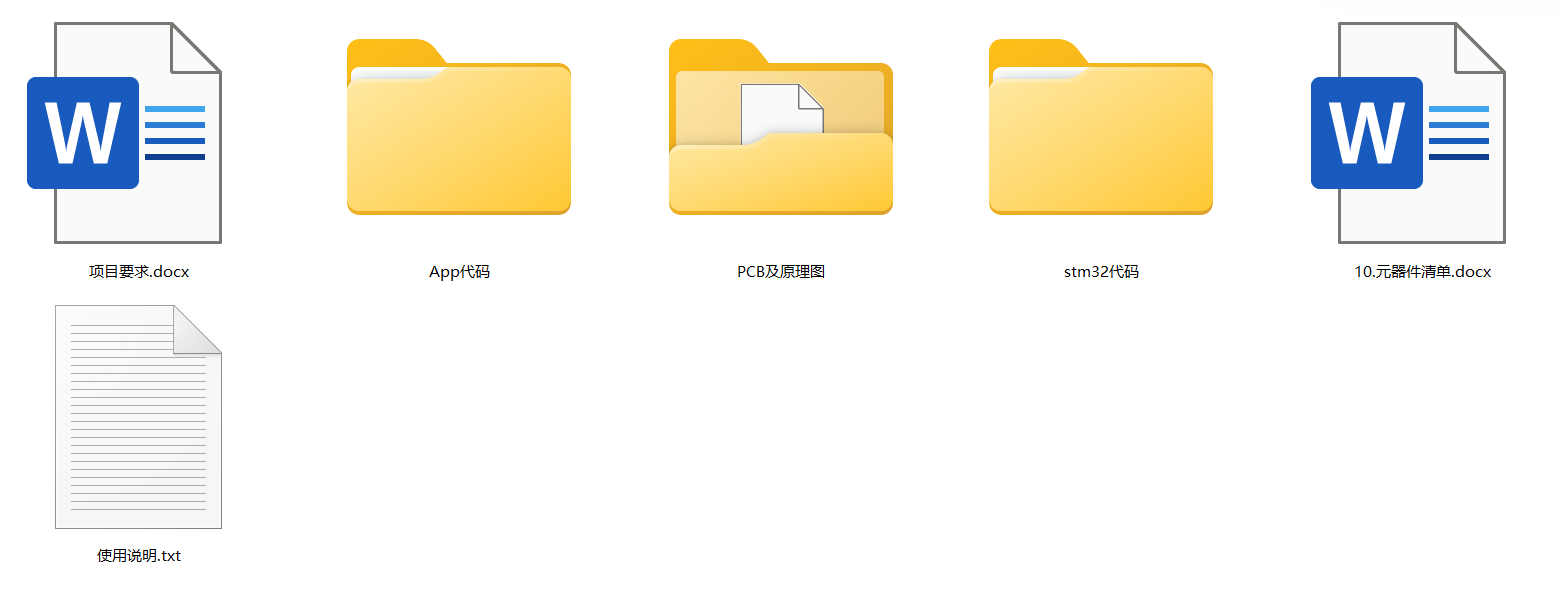
八、资料内容
九、文末
一键三连后,后台私信我领取资料,更多项目资料或选题辅导查看主页获取方式(尽情期待)

智能硬件社区聚焦AI智能硬件技术生态,汇聚嵌入式AI、物联网硬件开发者,打造交流分享平台,同步全国赛事资讯、开展 OPC 核心人才招募,助力技术落地与开发者成长。
更多推荐
 33
33 0
0- 0


 已为社区贡献3条内容

所有评论(0)